Scripting in the Forth Programming Language - (SwiftForth / GForth)
I will show how to write scripts in the forth programming language.
Useful for cron tab or task scheduler. I will cover how to set this up in Linux and Windows.
I will be using SwiftForth and GForth as an example. Here is some steps to install it on Linux.
Words used in this video:
PWD
CD
MARKER
>SHELL
SYSTEM
sf-cli.exe
include
Getting SwiftForth running on Linux
Head on over to https://www.forth.com/download and get the file for linux.
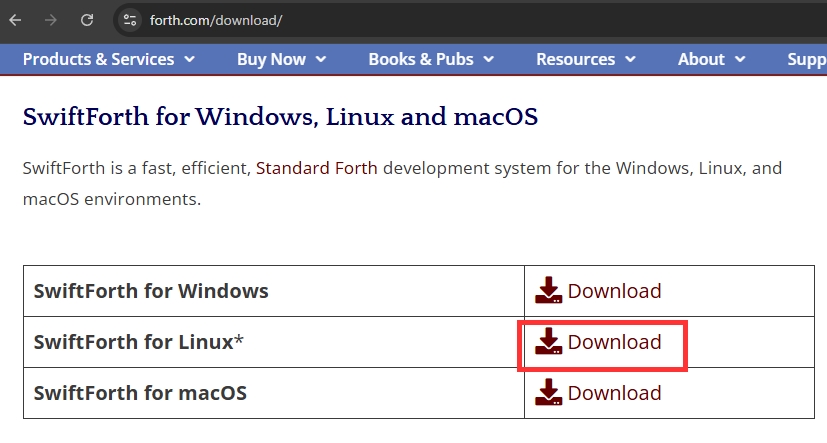
After you’ve downloaded the file, unzip it and copy the folder “SwiftForth” into your
/usr/local/bin folder

Next we need to add it to .bashrc This will allow us to type in “sf” and it will run SwiftForth from any folder.
You can use vim or nano to edit the .bashrc file.
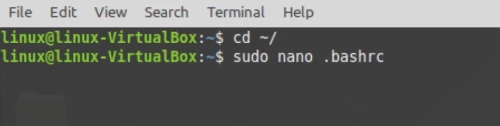
Next, add these 3 lines at the end of the .bashrc file. If you use nano as your text editor then replace vim with nano.

Next echo out your path and you should see this:

To confirm its working. Type in sf and you should now see the SwiftForth interpreter.
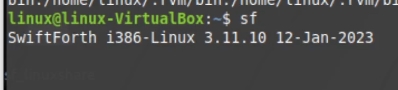
📝 Working with Files in SwiftForth
Once SwiftForth is running by typing sf and hitting the enter key, you can use the pwd word to print your current directory.
Example, create a new file:
s" touch test1.f" >shellEdit it directly (this will open in vim or nano which we set earlier):
edit test1.fThis opens it in Vim.
Add a simple word definition:
: greeting ." Hello, world!" ;Exit by typing in bye then in your linux prompt type in sf include test1.f
You should now be able to type in greeting and it will run your word.
Add bye to the end of your scripts
How to run and exit your SwiftForth script automatically.
Lets say you run a script directly from the linux command line…
user@linux-box:~$ sf test1.fIn test1.f you just add the word bye at the end of the script:
\ sf test1.f
: greeting ." hey" ;
greeting
bye
Now anytime you run this from a linux prompt, it will output hey to the console and exit:
user@linux-box:~$ sf test1.f
hey
user@linux-box:~$
This is especially useful when using cron or task scheduler jobs.
Environment Variables and Library Files
SwiftForth defines environment variables for its directories. Try this in the SwiftForth interpreter:
user@linux-box:~$ sf
cd %swiftforth
pwd  \ this will output /usr/local/bin/SwiftForth/
You’ll be taken to /usr/local/bin/SwiftForth/, where you’ll find a lib folder containing useful files such as TCP/IP libraries.
In the next video \ blog post, I’ll show you how to use these to create a TCP server in SwiftForth.
Using the MARKER word and Overlays
Another powerful SwiftForth feature is markers, also known as overlays. These let you define rollback points in your dictionary.
For example:
marker untested
: test ." Testing..." ;

marker experimental
: exp ." Experimental feature" ;
You can “forget” everything defined after a marker:
experimentalThis removes words defined after experimental while keeping earlier ones intact. It’s a clean way to manage sections of code, especially during development.
Setting Up SwiftForth on Windows
On Windows, SwiftForth includes both a GUI and a command-line version:
sf-cli.exe
Step 1: Open the CLI
You can launch it from PowerShell or Command Prompt. Make sure you’ve added it to your PATH environment variable in Windows.
Or you can access it by going into the SwiftForth\bin folder and open a command prompt there and typing in:
sf-cli.exe
It provides a lightweight Forth interpreter similar to Linux, though with fewer built-in words.
Step 2: Work with Files
You can still use your favorite editor:
edit mytools.f
- This opens the file in Notepad by default. Inside, you can define utility words such as:
-
slurp ( filename – ) … ;
- spew ( filename – ) … ;
Step 3: Add SwiftForth to PATH
To make sf-cli.exe available globally, add its directory to your system PATH. Once set, you can run it from any folder.
A Quick Look at Gforth
Finally, let’s briefly cover Gforth, a popular open-source Forth implementation.
In Gforth, you can run shell commands using the system word:
s" pwd" system
You can also open editors like Vim or Nano directly:
s" vim test1.f" system
That’s a full cross-platform setup for scripting with SwiftForth and Gforth. Now you can run SwiftForth from anywhere in Linux or Windows